Deformable Snow Shader System - Part 3: The Snow Shader

General / 25 June 2019

Part 3: The Snow Shader

The juiciest part: the actual snow shader! Before starting to work on the actual code, it's always useful to make a list of the feature we'll need in our shader to get a realistic look.

  • displacement: fresh snow is rarely a completely flat surface, it has hills and valleys
  • fine grain: fresh snow is grainy and full of micro structures that reflect light
  • icy cristals: the ice crystals reflect the light pretty sharply, even from distance
  • material blending: we'll need to somehow blend between the fresh snow material and the roof material below

We'll make use of the surface shader system provided by Unity, which will avoid us a lot of code rewriting to support different platforms and render pipelines, letting us focus on the important stuff.

Displacement

To displace vertex in a surface shader we'll need to declare a vertex function in which we're going to do our calculations, and hook it up to the surface system by adding vertex:custom_vertex_function_name to the #pragma directive we already have in our shader code. Inside our vertex function, we'll need to compute the snow height by sampling the _HeighTex provided by our custom depthProcessor shader, thus having the very foundation of our deformable snow system, and displace the vertices along the up vector (which in Unity's case is the Y vector: float3(0.0, 1.0, 0.0)) by the amount indicated by the _HeightTex aforementioned. This is not particularly complex to implement (actually it's just a matter of adding the height to the current vertex position) but if you check how the plane renders at this point you'll notice a happy little artifact: the surface isn't being shaded properly along the curved surface generated by the snow trails. If you check the Deferred Normal draw mode (or just output the normal value in the Albedo field of the shader) you'll immediately understand why: the normals along these steps are exactly the same as anywhere else on the surface. 

This happens because in the original mesh each normal is pointing in the same direction, and even if you're displacing the vertices, the stored normal informations remain the same. This means we'll have to find a way to somehow re-orient the normal in a way that follows the displaced surface. If you've studied some physics at school, you may remember a vector operation which gives you a vector perpendicular to something. This operation may not be as famous as the dot product but it's still fundamental in 3D computer graphic, and goes by the name of cross product.

The Cross Product

In mathematics and vector algebra, the cross product is a binary operation on two vectors in three-dimensional space R3 and is denoted by the symbol x . Given two linearly independent vectors a and b , the cross product a x b is a vector that is perpendicular to both a and b and thus normal to the plane containing them. (you can find more info here on wikipedia)

So the cross product actually gives us a vector normal to the surface on which the two vectors are lying. That sounds nice! How do we get vectors a and b in the first place though? The idea itself is actually quite simple. We try to get an idea of how the surface is in the nearest surroundings of our vertex by sampling the heightmap two more times, one slightly to the right (moving on the u axis) and one slightly forward (moving on the v axis). We can then build two vectors originating from the current vertex and pointing respectively right and forward, and cross-product them to get the correct world-space normal for the surface. Here's an example of how we could implement this kind of technique:

[...]
//define a fixed constant to offset uv with. can also be exposed as a parameter, or be dependent on the _TexelSize
#define OFFSET_CONST (0.0025)
[...]
float3 d;

//fill the displacement vector with the _HeightTex values
//remember we're in the vertex shader, so we'll need a tex2D function that works regardless of the partial derivatives of u and v //(essentially used to compute the correct mip level), so tex2Dlod should work. you can find more info here
d.x = tex2Dlod(_HeightTex, float4(v.texcoord.xy, 0, 0)).r;
d.y = tex2Dlod(_HeightTex, float4(v.texcoord.x + OFFSET_CONST, v.texcoord.y, 0, 0)).r;
d.z = tex2Dlod(_HeightTex, float4(v.texcoord.x, v.texcoord.y + OFFSET_CONST, 0, 0)).r;

//v0 is the current vertex, v1 and v2 are fake neighbour vertices used to compute the normal
float4 v0 = mul(unity_ObjectToWorld, v.vertex);
float4 v1 = v0 + float4(OFFSET_CONST, 0, 0, 0);
float4 v2 = v0 + float4(0, 0, OFFSET_CONST, 0);

//get the correct height for the three point needed for analytical normal reconstruction
v0.y += d.x * tex2Dlod(_HSnowMixMap, float4(v.texcoord.xy, 0, 0)).b;
v1.y += d.y * tex2Dlod(_HSnowMixMap, float4(v.texcoord.x + OFFSET_CONST, v.texcoord.y, 0, 0)).b;
v2.y += d.z * tex2Dlod(_HSnowMixMap, float4(v.texcoord.x, v.texcoord.y + OFFSET_CONST, 0, 0)).b;

//compute the world space normal as the cross product of the Z and the X vector
float3 wsn = normalize(cross((v2 - v0).xyz, (v1 - v0).xyz));

Note that the cross product IS NOT commutative, so pay attention to the order of the vectors if you don't want to get an inverted normal.

Fine Grain

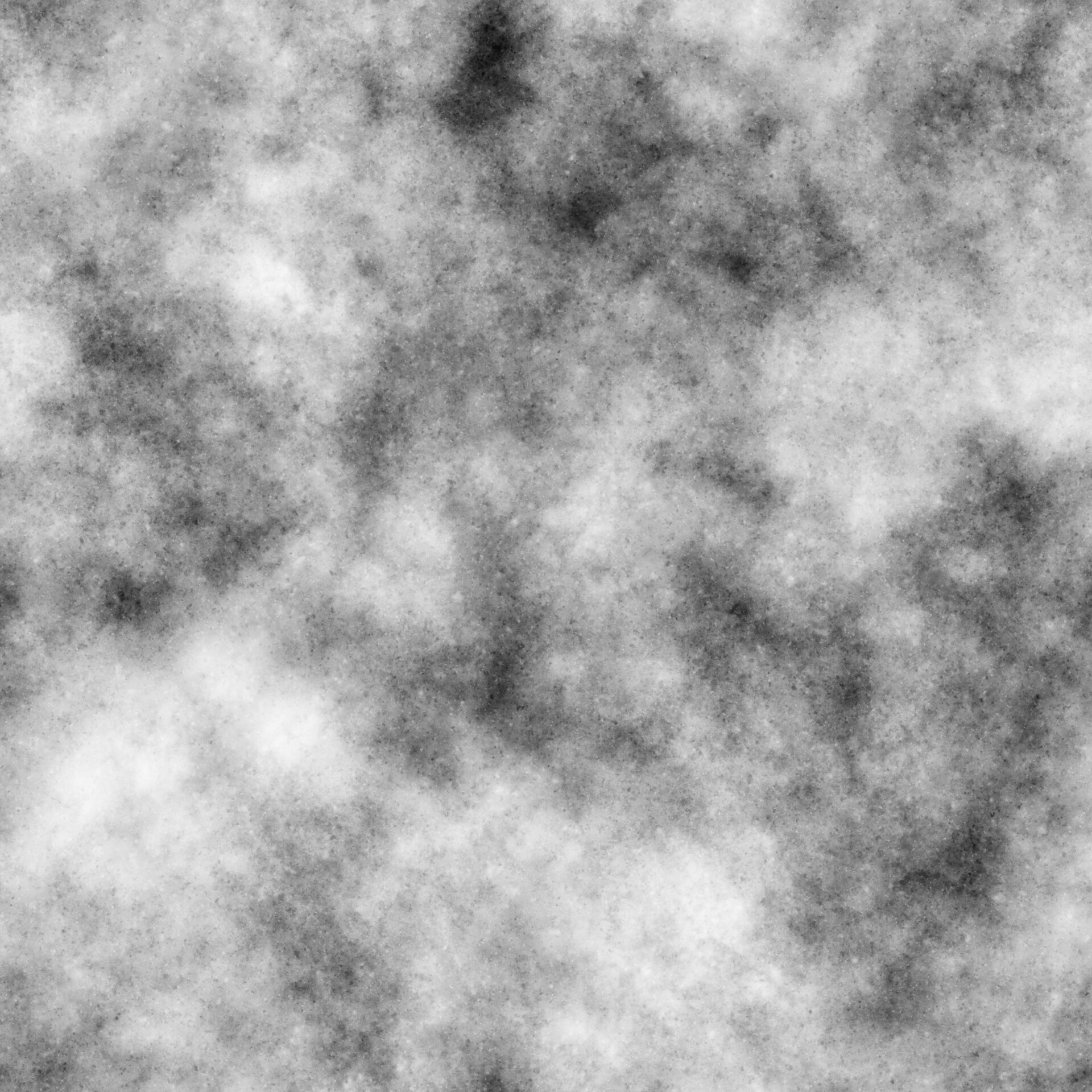
Get the correct snow grain it's actually just a matter of nailing the texture in Substance Designer. Look at this reference photo, for instance:

As you can see, the snow itself, apart from the icy cristals it's quite rough, so mixing something like a Clouds2 and a BnW Spots 2 should give you a good start. Something like this, for example:
Icy Cristals

The icy cristals are actually just very small and reflective surfaces, scattered in random directions among the snow flakes. The idea is create a black texture with very tiny white dots (they can be as small as a single pixel, actually) scattered around, ad sum them to your specular texture. Of course, depending on the workflow (specular or metallic), you'll need to invert the texture colors. My approach to make them visible even with very low light was actually output them in the Emissive channel as well, to get a clear bright reflection. I also added a tunable falloff range near the camera, since I noticed that having these bright dots in the immediate vicinity wasn't very pleasant, but that's just a matter of personal taste, so you can actually eliminate the falloff completely.

Material Blending

Since we're done with the snow material writing, it's time to get to the last step: the blending. We'll need two sets of textures, one for the snow and one for the roof below, but with a bit of packing we can get away with just six textures in total. The blending should be based on the _HeightTex processed in chapter one of this article series. Note that the value sampled from this texture it's just a grayscale value varying from one (soft snow) to zero (roof and trampled snow) in a linear  fashion, which is not ideal when used to blend from very different colors (let's say, for example, from the snow to an orange brick roof). We'll need to empirically determine the best transition sharpness to get both a believable color blend and avoid a sharp, pixellated transition line, especially if we're working with a low-res depth buffer. The strategy is to use a float remap function to "move" the values into the desired range, like this one:

inline float remap(float value, float oldMin, float oldMax, float newMin, float newMax)
{
 return newMin + (value - oldMin) / (newMax - newMin) * (oldMax - oldMin);
}

which can even be optimized if the desired oldMin and oldMac values are 0 and 1. Notice that if we do something like 

blend_amount = remap(tex2D(_HeightTex, uv).r, 0.0, 1.0, 0.0, 0.5)

whenever the sampled texture value is above 0.5 the result will become > 1.0, so it's necessary to clamp the value after the remap function if you're planning to use it in a lerp function like we're about to do.

The only thing we're left with is to actually blend the values from the snow sampling and the roof sampling for each channel (Albedo, Specular / Metallic, Roughness, Normal, Emissive, Occlusion and Alpha). As always, there's room for improvement! For example we could consider that when snow gets trampled it does not just disappear, but instead spreads around the impact point, originating smaller snow heaps here and there, like this:

We could then try to implement some kind of trampled snow instead of just showing the plain roof textures, blending them with a lowered version of the same snow textures we're already using before blending them again with the soft snow samples.

You can take a look at the complete result in action here:


You can find the complete shader code here on GitHub


This is the end of Part 3 and of this article series as well. You can find Part 1 here and Part 2 here
Report

Deformable Snow Shader System - Part 2: The Command Buffer

Article / 25 June 2019

Part 2: The Command Buffer

Now that we have our Depth Processing shader, it's time to built the structure to see it in action! Luckily for us, Unity has undertook a very convenient path to render customization, starting with command buffers back in Unity 5.0. The next, greatly awaited step was introducing customizable rendering pipelines in Unity 2019 (can't wait to dive in it!) but for the sake of retrocompatibility we'll stick with command buffers. The general idea is very simple: add a bunch of low-level graphic commands to be executed every frame, before or after a certain stage of the rendering pipeline.

In our case, the depth processing should occur before we actually render the snow, and of course after the depth texture itself is rendered, so attaching the command buffer to our depth camera using CameraEvent.BeforeForwardOpaque enum value should be fine.

What do we need to put in our command buffer then?

We will need a texture to be our depth buffer to which output our calculations, and another texture as a support buffer, to copy the current state of our calculation just before updating it (that is because, of course, you cannot read and write into the same texture within a single blit operation)

The most basic version of the SetupCommandBuffer() method could look like this:

void SetupCommandBuffer()
{
cb = new CommandBuffer();
cb.name = "Depth Processor Buffer"; 
//get the RenderTargetIdentifiers for our render textures
RenderTargetIdentifier dst = new RenderTargetIdentifier(depthBuffer);
RenderTargetIdentifier dstSupport = new RenderTargetIdentifier(depthBufferSupport); 
//copy the dst buffer into the supportDst, which will be used in the next step
cb.Blit(dst, dstSupport);
//blit the rendered camera depth into the depthBuffer
cb.Blit(dstSupport, dst, depthProcessorMaterial, 0);
//set the depth buffer as the height texture
cb.SetGlobalTexture(heightTexID, dst); 
//add the command buffer before forward opaque rendering, in order to have
//the height texture available at render time
snowCamera.AddCommandBuffer(CameraEvent.BeforeForwardOpaque, cb);
}

Of course, as always, there's room for improvement. For instance, the CommandBuffer class provides a method specifically intended to copy one texture to another, namely CommandBuffer.CopyTexture(), which is actually faster than Blit() because it directly copy values from a texture to another, without drawing a full screen quad with the default blit shader. The downside is that this operation is not supported on every platform, and has some specific restriction, so is a good idea to perform a support check with the SystemInfo.copyTextureSupport enum, and choose between CopyTexture() and Blit() accordingly. Since we mentioned the smoothing phase before, we could add another texture (called dstBlurred from now on) and blit the dst buffer into it, using the second pass of our DepthProcessing material.

NOTE: remember to set dstBlurred as the global texture instead of dst, and DO NOT BLIT dstBlurred back to any of the other two buffer. I mean, you can try and see by yourself why it's not a very good idea, at least for snow trails. I could use this trick in another experiment with water/mud trails maybe, since it looks promising in this kind of situations.

Last thing to consider is that I exposed the choice between blur and no blur as a class parameter to improve flexibility on older systems. Note that once the command buffer is attached to a camera is unmodifiable, so you will need to remove it from the camera, dispose it, and regenerate it calling SetupCommandBuffer() again.

You can take a look at the system in action here:


 You can find the complete code here on GitHub


This is the end of Part 2. You can find Part 1 here and Part 3 here

Report

Deformable Snow Shader System - Part 1: The Depth Processor Shader

Article / 25 June 2019

Since we're in summer finally I thought everybody could use some cold, and that's why I came up with a Deformable Snow shader system. It's actually a project that I finished some three years ago, but working on Gridd: Retroenhanced first and as a freelances after has been quite a commitment, and I was able to finalize it only recently.

Now, be advised that this is not an easy challenge, because it requires knowledge of the rendering pipeline, of data precision and storage, and of a bit of scripting. If you feel confident go ahead, I'll try my best to be as clear as possible.

The idea came from this fantastic presentation by the amazing Colin Barré-Brisebois, held at GDC in 2014, about how they implemented the deformable snow system in Batman: Arkham Origins.

You can watch the techinque in action here:


The technique is essentially composed of:

  1. An ortographic camera with a very short frustum, pointing upwards, which renders a depth texture;
  2. A shader which processes the depth texture rendered by that camera;
  3. A snow shader which blends from soft snow to trampled snow based on the texture processed by the shader from point 2.

I'm gonna break down the challenge in 3 different articles to improve readability

  1. The Depth Processor Shader
  2. The Command Buffer
  3. The Snow Shader

Part 1: The Depth Processor Shader

So, first things first. As you can see from slide 20, the depth processing in a generic frame should work more or less like this:

  1. Get the previous depth buffer, in order to mantain persistent changes in the snow surface;
  2. Get the current depth texture;
  3. Combine them, optionally with some sort of "accumulation" effect to make the trampled snow grow back over time in cases of snow falling.

Knowing this, our fragment function could be something like

fixed4 frag(v2f i) : SV_Target
{
//sample previous accumulated depth float
accumulatedDepth = tex2D(_MainTex, i.uv).r;
//invert x component of uv because camera is flipped
i.uv.x = 1.0 - i.uv.x;
//sample current depth value from depth texture float
depthValue = Linear01Depth(tex2D(_CameraDepthTexture, i.uv).r);
//compute time factor as 1.0 / persistence if persistence > 0.0, or 0.0 otherwise
float timeF = lerp(0.0, clamp((1.0 / _PersistenceF), 0.0, 1.0), sign(_PersistenceF));
//sum the time factor to the accumulated depth, multiply for the current depth value to keep zone flat
float actualDepth = clamp((accumulatedDepth + timeF) * depthValue, 0.0, 1.0);
//return the actual depth for the frame
return fixed4(actualDepth, actualDepth, actualDepth, 1.0);
}

It's all fun and games, 'till someone loses his precision. In fact, if you raise the value of _PersistenceF over 256.0, the snow will stop growing back. Moreover, you have a very limited range of time span to choose between to adjust the grow speed. If we take a look at this page in Unity documentation, we'll find out why. The fixed4 data type is described as such:

Lowest precision fixed point value. Generally 11 bits, with a range of –2.0 to +2.0 and 1/256th precision.

And that's the reason why we're having such issues. The solution is only one: use a full float precision value to store the depth in our texture. The approach is different depending on the hardware we're working on: on modern hardware we can declare a texture with a RFloat format, meaning that it will have the red channel only, with a 32 bit full-float precision. Nice and easy. The values are retrieved with tex2D(_Texture, uv).r and the frag function output should be float4 (of which only the first channel will actually be written on the texture).

On older hardware we can't rely on RFloat textures, so the idea is to encode our float into the 4 channels of a standard ARGB32 texture and decode it back for calculations. Looking here, we find out that Unity actually has a couple of nice functions that do just what we need: float4 EncodeFloatRGBA (float v) and float DecodeFloatRGBA (float4 enc). If you want to dig deeper into their functioning, this blog post from Aras explain how they actually work.

NOTE: the encoding function works with input in [0..1) range, meaning that 1.0 WILL NOT BE ENCODED PROPERLY. This happens because the encoding function relies on the frac(n) function, which returns the fractional part of a floating point number. frac(1.0) will indeed return 0.0, which is mathematically correct, but that will  screw up the encoding process. This means that we need to clamp the depth in a [0.0, 0.999999] range to make the encoding function work with an acceptable loss of precision.

My approach to support the ARGB fallback without too much code rewriting was encapsulating the encoding-decoding portions of the frag function inside a conditional-compile block, and enabling shader multi compile with a keyword, like so: #pragma multi_compile ______ FALLBACK_ARGB. The FALLBACK_ARGB global shader keyword is then enabled via script if RFloat texture format is not supported (but we'll get back to the scripting part later).

Blur is also mentioned in the presentation: especially useful with low res depth buffer, it gives a smoother look to the traces left by our objects. Note that blur tends to be a resource-consuming thing to do, and as such should be treated carefully.

I tried different approaches, the first being separable gaussian filtering, but altough it has many proven advatages in blurring, it has a couple of tradeoffs: the first is the (relatively small) time cost of set up another render pass (which obviously is less than the time for a single-pass gaussian blur for large kernels, but remember: we're talking about a 3x3 kernel here), and the second, bigger tradeoff is that you'll need another texture, the size of the one you're blurring, to separate the horizontal and vertical passes. Now, normally for a screen blur effect this is an expected cost, especially because it's just one texture, but consider the use case of our technique: this would require one additional texture for each snow roof, and even if we keep the resolution as low as 512x512 pixels, thing can quickly add up and consume a lot of memory.

We've two possible solutions left: a simple box filter, or a poisson filter. Either ways are fine in my opinion, mostly because we'll not directly see the blurred texture but rather the resultant height, but I went with a 4 tap bilinear poisson filter, as suggested in the slides. It's quite diffcult to find information on poisson filtering because gaussian filtering infos keeps popping up everywhere, so i'll try to do brief explanation here and provide some links to extend your research.

The Poisson Distribution

The Poisson distribution is a discrete probability distribution that expresses the probability of a given number of events occurring in a fixed interval of time and/or space if these events occur with a known average rate and independently of the time since the last event. (yup, quoting Wikipedia here). The important fact for us is that under certain circumstances, the Poisson distribution can be transformed into a Gaussian distribution, and here's when things start to get interesting. (if you want to dig deeper into this, you can go to this thread on stackexchange/math) The Poisson distribution  has many application in the game industry, for example algorithms to populate natural worlds with objects in a pseudo-random way, but within the computer graphic domain, it has the property of generate random points within the unit circle (look mom: a kernel!) that can be rotated and scaled arbitrarily. I found a beautiful tool from coderhaus which lets you generate a determined number of points with a fixed distance between them, and you have the source code too, so it's really worthy to open it up and take a look how it works. EDIT: sadly coderhaus is no longer reachable, so the tool is not available anymore. :c

Anyway, back to our Depth Processor Shader. This pass is quite simple: define an array of float2 which holds our Poisson kernel, and sum the samples, offsetting the uv by the poisson kernel value times the texel size (to keep them into the unit circle around our current pixel), much like so:

[...]
static const float2 poisson_kernel_4[4] =
{
float2( 0.4247072, -0.4262313),
float2(-0.3010053,  0.3568736),
float2( 0.8125032,  0.3971981),
float2(-0.4083271, -0.8709177)
};
[...]
//initialize col value
float col = tex2D(_MainTex, i.uv);
//loop trough a small poisson kernel, sample and add
for (uint j = 0u; j < 4u; j++) {
//the kernel is modulated by the texel size to sample around the current pixel
col += tex2D(_MainTex, i.uv + (poisson_kernel_4[j] * _MainTex_TexelSize.xy)); }
//get the mean of the sampled values
col /= 5.0;
//return color value
return float4(col, 0.0, 0.0, 0.0); 
[...]

As before, I added a #pragma multi_compile directive to support the ARGB fallback we discussed before: the code is almost identical, just remember to decode the float from the texture fetches and encode it back before returning.


You can find the complete shader code here on GitHub


This is the end of Part 1. You can find Part 2 here and Part 3 here

Report

2D Character Animation Shader

General / 19 June 2019

Introduction

I love to challenge myself and dive into different areas of shader development (not only shaders, to be honest, but today we'll stick to that), so I decided to move away from the usual 3D material creation and see if I could recreate a 2D spritesheet animator on my own.

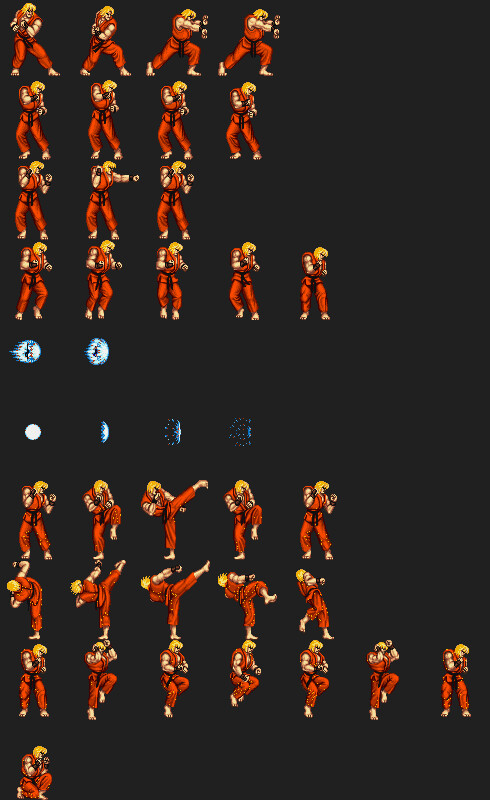
The concept itself is quite simple: the animation frames are rendered onto a texture, one frame after another, kinda like this:

Spritesheet for Ken from Steet Fighter II, courtesy of jkneb


The shader should select a subset of the texture uv to render only the desired frame onto the quad, and should sequentially switch frame at runtime in the correct order.

Now, if you've played around a bit with shaders, you should be familiar with the concepts of tiling and offset of a texture. For whose who aren't, a brief explanation.

  • The Tiling of a texture represents the scale of the mesh uv compared to the texture plane. At code level this means that the vertex uv will be multiplied for the Tiling value: a Tiling value of 2, for example, means that a vertex with a uv value of [0.5, 0.5] will be mapped in the [1.0, 1.0] corner of the texture.
  • The Offset of a texture represents the offset from the actual uv coordinate of the vertex that will be applied when mapping a texture. At code level, this means that the vertex uv will be summed with the Offset value: a Offset value of 0.1, for example, means that a vertex with a uv value of [0.5, 0.5] will be mapped in the [0.6, 0.6] location of the texture.


Implementation

Of course these two values are not only separable for the u and v axis (they can have different values for each axis if needed), but they can also be combined and used together. As we said before, the first thing we need to do is to somehow "select" a frame. This actually means zooming the texture until we fit a single frame onto our quad, and could be easily achieved by using a Tiling value smaller than 1.0. More specifically, to get the exact normalized size of a single frame (remember, to normalize means to rescale values in a [0..1] range) we should set the Tiling value as a float2(1.0 / _Columns, 1.0 / _Rows), _Columns and _Rows being exposed parameters. This because the u size of the frame depends on how many columns we have set up in our animation texture, and of course the v value depends on the rows number.

Now that we're able to select a single frame out of our animation texture, the complex part is how to select the correct frame. This actually translates to setting the correct uv offset value, depending uniquely upon a single _Frame parameter, that should conveniently be set via script at runtime. We would like to start at [0.0, 0.0], and move left on the first row, each time summing the size of a frame; when the row is finished, reset the u value to 0.0 and increment our v value by the normalized frame size.

Keeping this in mind, the u value should be easily computed by just multiplying the u axis Tiling factor for the current _Frame value: if we set the wrap mode to repeat, each time we provide a uv value that's not in the [0..1] interval, the value gets rescaled, so for example a u value of 1.3 actually means 0.3. This guarantee us that even if the Tiling.x *_Frame value gets higher than one, it will always correctly slide left to right onto our texture.

About the v value, we'll start by considering only a bottom-to-top kind of movement for now. We would like to increment the value only if we've selected all the frames of a single row. This means that we should multiply the Tiling.y value for something that increments only when the _Frame is bigger than the number of frames in a single row. Luckily for us, the floor(float param) function returns the lower int value of the float parameter. If we do something like floor(_Frame / _Columns), this will return 0.0 until _Frame is lower than _Columns, 1.0 until _Frame is higher than _Columns and lower than two times _Rows, and so on. This is exactly what we want, because we'll scan every frame of a row, and then move up and start scanning the frames of the next row. The deed is done.

And if we've stored our animation from top to bottom, just like the texture I presented you before? In this case we want to move downward, so we'll need to decrease the Offset.v value instead of incrementing it. And where to start? If we just do 1.0 - floor(_Frame / _Columns), we'll start at the bottom row as if we kept the same logic as before. That's because we actually want to start where the uv of the upmost row begins, that is (1.0 - Tiling.y) - floor(_Frame/_Columns).


Optimization

So, where we should put all our calculations? Since shaders will conveniently automatically generate for us the interpolated uv values for the fragments based on the vertex uv values, it's probably a good idea to transform these values in the vertex shader, -just 4 times for our quad- instead of potentially tens of thousands of times in our fragment shader. Unity in this case has a helper function, TRANSFORM_TEX(v.uv, _MainTex), that transform the uv coordinates. It needs a float4 _MainTex_ST vector declared, (_ST stands for ScaleTranslate), that unsurprisingly holds the Tiling (_MainTex_ST.xy) values and the Offset values (_MainTex_ST.zw). It's needed to let you modify these parameters in the material interface, and internally this function just does uv * _MainTex_ST.xy + _MainTex_ST.zw.

So if we modify the actual _MainTex_ST values before calling this function, we're good to go and everything works as expected.

The last thing we need to consider is how to decide if we'll go up-to-down or down-to-up. Conveniently, Unity has a method to declare a Enum-like selector in our material inspector, that outputs to a float the value we specify for the tag. It works by declaring something like [Enum(DownToUp,0,UpToDown,1)] just before our _DirectionY("Animation packing order", Float) = 0 parameter. Depending on what the user will select, _DirectionY will be 0.0 or 1.0: I have used this value in a lerp function that outputs either the result of the calculation for the down-to-up logic or the opposite.


You can check the code on GitHub: https://github.com/a-riccardi/shader-toy/blob/master/ShaderToy/Assets/FrameAnimator2D/Shaders/Git/FrameAnimator.shader 

Report

A new approach for Parallax Mapping: presenting the Contact Refinement Parallax Mapping Technique

General / 18 June 2019

Introduction

Providing accurate and convincing visual surface details is a must for video games. It enhances the immersivity, making the player feels he/she's actually inside the world that's been so meticulously crafted by the developers. Having to deal with the big limitation of mantaining an interactive framerate, the actual amount of triangles that is possible to use is quite limited (as well as the shaders complexity), so it's always a matter of finding the best trade between visual fidelity and the time needed to render a single frame.

Previous works

Parallax Mapping was introduced in 2001 as a technique capable of convincingly simulate surfaces with details at different heights using actually no more than a plane as the base geometry. The idea behind is treating the heightmap as a height field, raytracing from the camera position through it and finding the intersection point between the view ray and the heightfield. As any other raytracing technique, parallax mapping relies heavily on approximating the intersection point rather than finding the precise value.

During the years, a number of different approaches has been developed to better approximate the result:

  • Steep Parallax Mapping: this technique just advances the ray into the heightfield and compares the depth of the ray with the height of the surface in that point, stopping the raymarching when the ray depth is lower than the surface height. With a low amount of steps, the notorious "pancake effect" is clearly visible, and the only way to get rid of it is increasing consistingly the amount of steps, at the expense of performance.
  • Parallax Occlusion Mapping: this techniques improve the previous technique by interpolating between the last step above the surface and the first step under the surface, thus approximating better the surface beneath.
  • Relief Mapping: this technique improves the Steep Parallax Mapping mentioned above by executing a binary search of the actual intersection point, starting from the first point under the surface, each time halving the uv offset in order to approximate the surface better.

Contact Refinement Parallax Mapping

The idea behind the technique I developed is actually pretty simple, and it's splitted in two parts:

  1. Find an approximated intersection point using the Steep Parallax Mapping approach.
  2. Refine the intersection point. This is done in the following way:
    1. Roll back to the previous iteration of the loop (in which the ray was still above the surface).
    2. Adjust the uv offset and the layer size by dividing them by the StepNumber used in the previous loop.
    3. Raytrace again with squared precision.

The resulting intersection point is computed with an effective 1 / (StepNumber * StepNumber) approximation error instead of 1 / StepNumber, while the total amount of steps in the worst case (a point with a height of 0) is StepNumber * 2 instead of StepNumber * StepNumber.

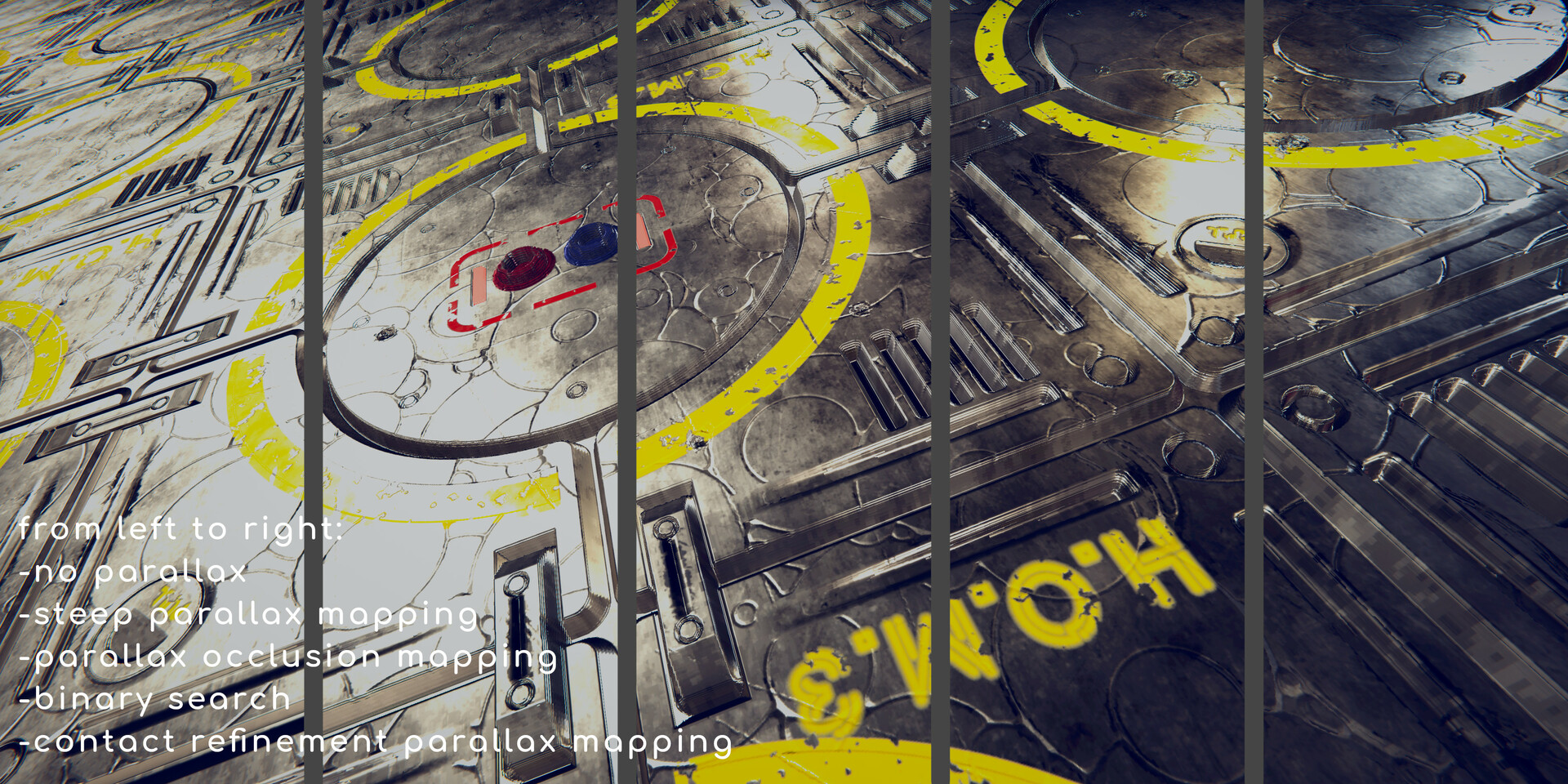
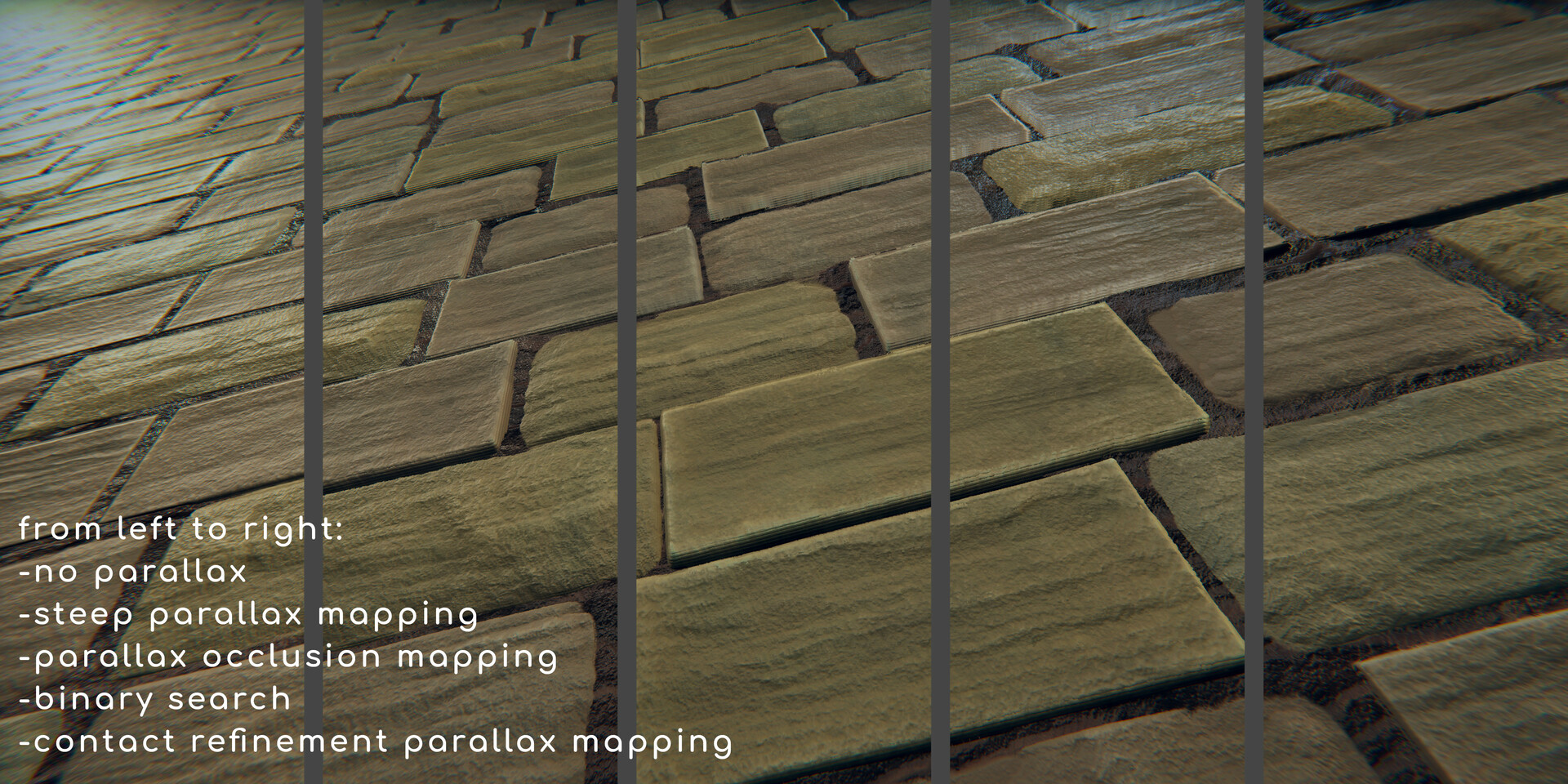
This technique actually gives better visual results of any of the other aforementioned techniques, while mantaining the same computational weight (plus 4 more assignment instruction). Here are some screens comparing Contact Refinement Parallax Mapping with the other Parallax Mapping techniques:


Maximum Step Number for each technique: 128 (128 steps for Steep Parallax, 128 steps + interpolation for Occlusion Mapping, 64 + 64 steps for Relief Mapping with Binary Search, 64 + 64 steps for Contact Refinement)


Maximum Step Number for each technique: 32 
(32 steps for Steep Parallax, 32  steps + interpolation for Occlusion Mapping, 16 + 16 steps for Relief Mapping with Binary Search, 16 + 16 steps for Contact Refinement)


Maximum Step Number for each technique: 16
(16 steps for Steep Parallax, 16 steps + interpolation for Occlusion Mapping, 8 + 8 steps for Relief Mapping with Binary Search, 8 + 8 steps for Contact Refinement)


Notice the shading artifacts and the pancake effect in all the previous techniques. The Contact Refinement Parallax Mapping gives especially good results when used in conjuction with the builtin Unity lighting system, leveraging the error in the normal map sampling that is clearly visible with the other techniques.


If you want, you can check out the code on GitHub:

-shader: https://github.com/a-riccardi/shader-toy/blob/master/ShaderToy/Assets/ContactRefinementParallaxMapping/Shaders/Git/ContactRefinementPOM.shader 

-parallax library: https://github.com/a-riccardi/shader-toy/blob/master/ShaderToy/Assets/Shaders/ParallaxOcclusionMapping.cginc 

Report

Particles Generation Via Shader

General / 04 December 2018

I was very inspired by the amazing works of Benjamin Bardou lately, and since i felt that their unique atmosphere would fit superbly in a game, i thought about giving it a shot and try to recreate the same "memory simulation" feeling. 

example of the kind of atmosphere i'm after

So, what i would like to recreate is basically a shader capable of rendering small, possibly floating billboard particles over a mesh, with the possibility of changing the particle size & density in real time, relatively to the camera. RIght now I've managet to build a realtime working shader with a bunch of tunable parameter, such as particle size, particle animation speed & offset, particle shape (triangles or quads) and particle fade distance from camera. Here's a couple of videos from the example scene i've build:


My approach was to write a shader with a geometry function that takes every vertex of the mesh and uses it to generate a size-and-shape-tunable billboard. Each billboard particle gets the normal, tangent and texture coordinates information from the vertex from which it was generated, and is then lit in a fragment function. The mesh is previoulsy tassellated and the vertices are displaced using a tunable sinusoid function, so both the density of the pointcloud and the oscillation are editable in real time for some nice fadein/fadeout effect. The distance from camera (plus a tunable offset) is also used  to scale the particles, to both give the "memory fade" feeling and to avoid too much overdraw in the background.


Some screenshots:


Since it looks promising I think I'll spend some more time to setup a nicer scene, and maybe some small interactive tech demo to demonstrate the  narrative potential of this technique. The engine used is Unity, and the environment is this very nice 3D scan available on Turbosquid.

Report